
In order to manage your PostgreSQL database, you need to:
- login into your hosting panel
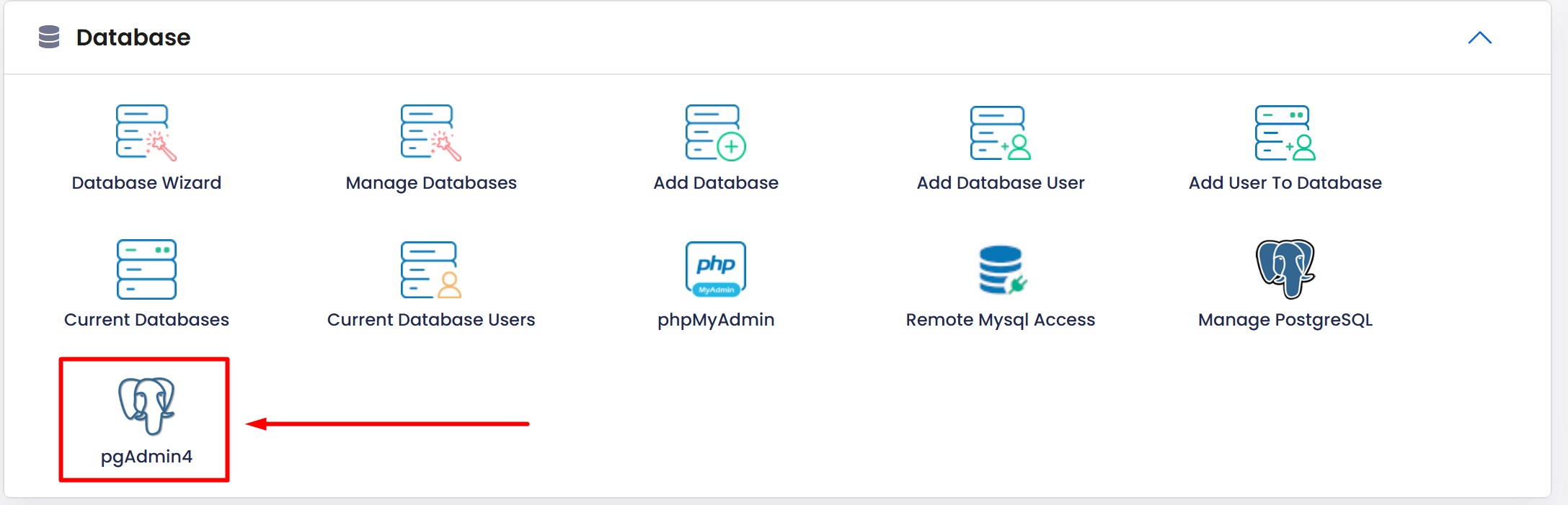
- find pgAdmin icon and click on it
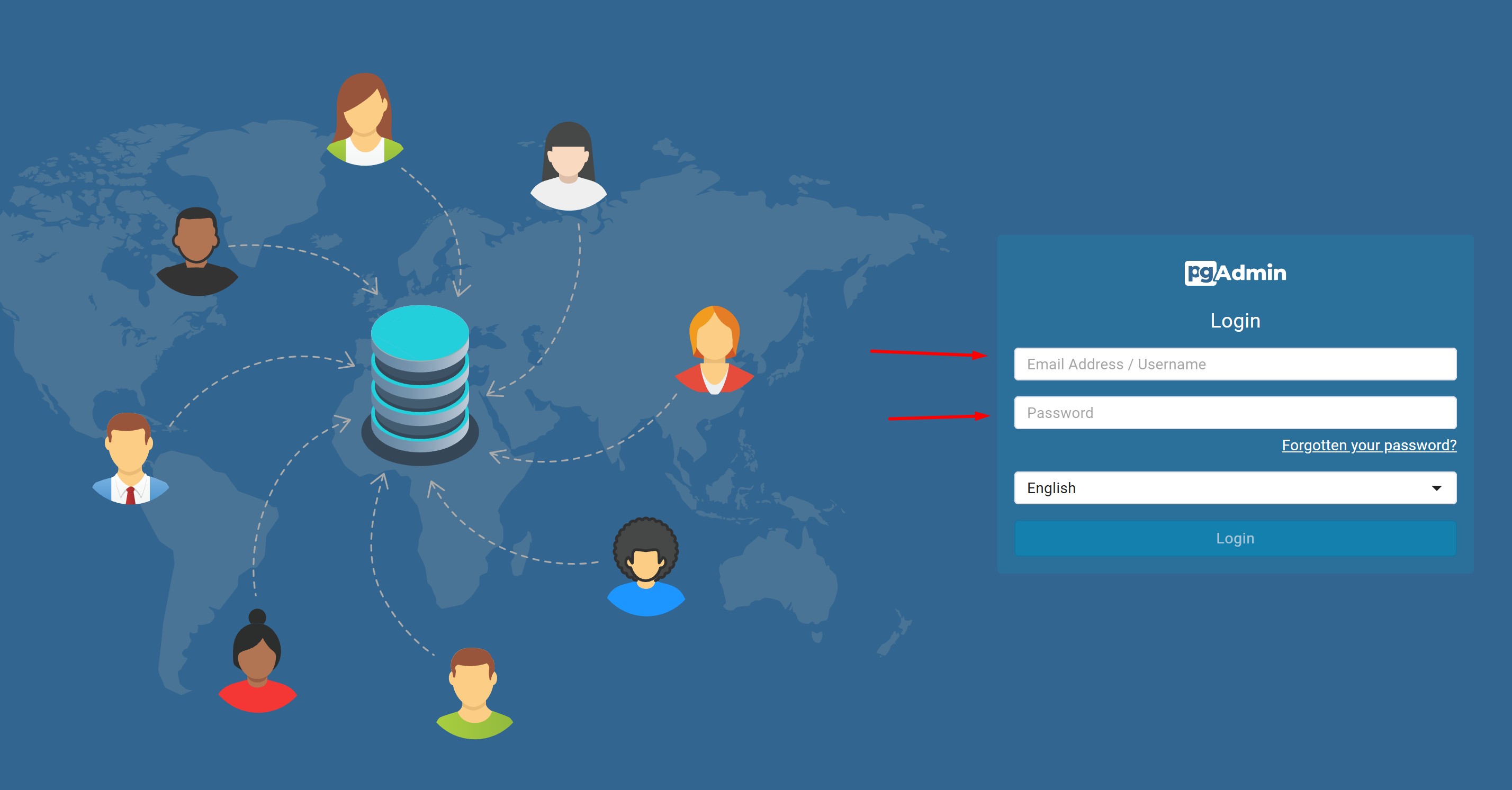
You will be redirected to another page where you will be prompted to login into pgAdmin user interface
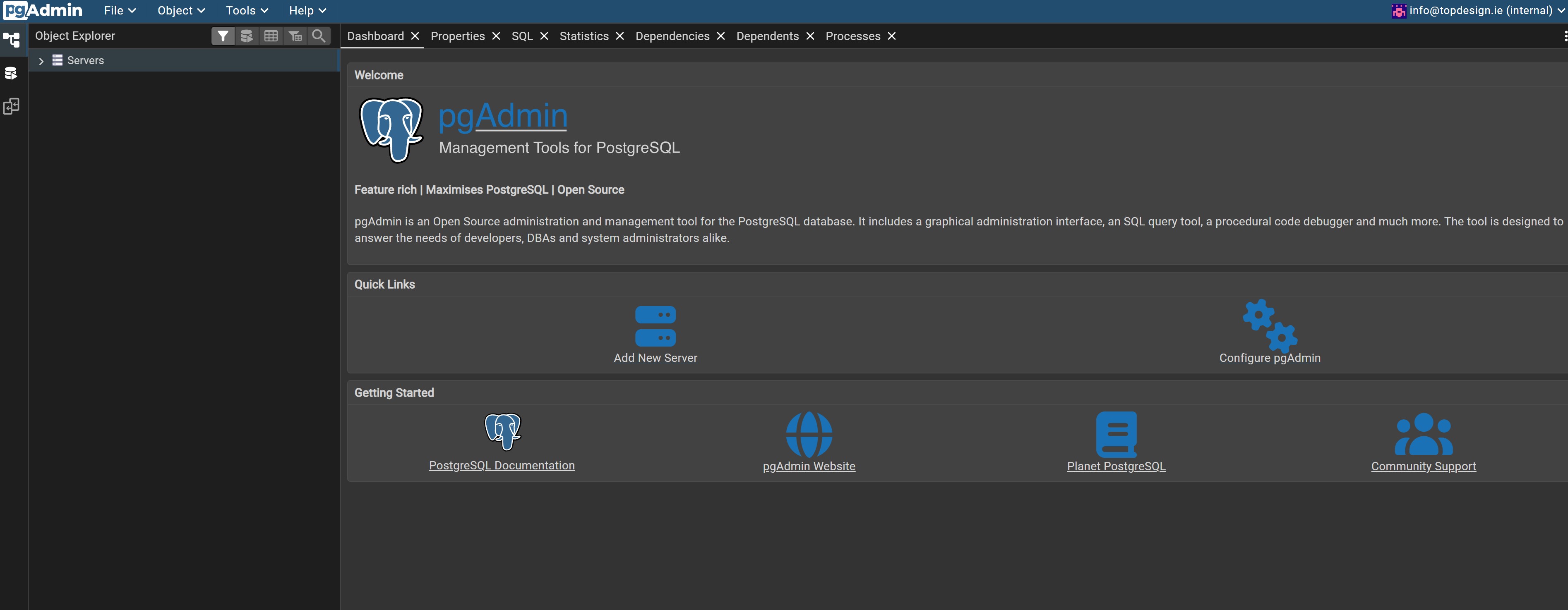
After successful login, an administration dashboard will be opened. Now you have to connect your database in order to manage it
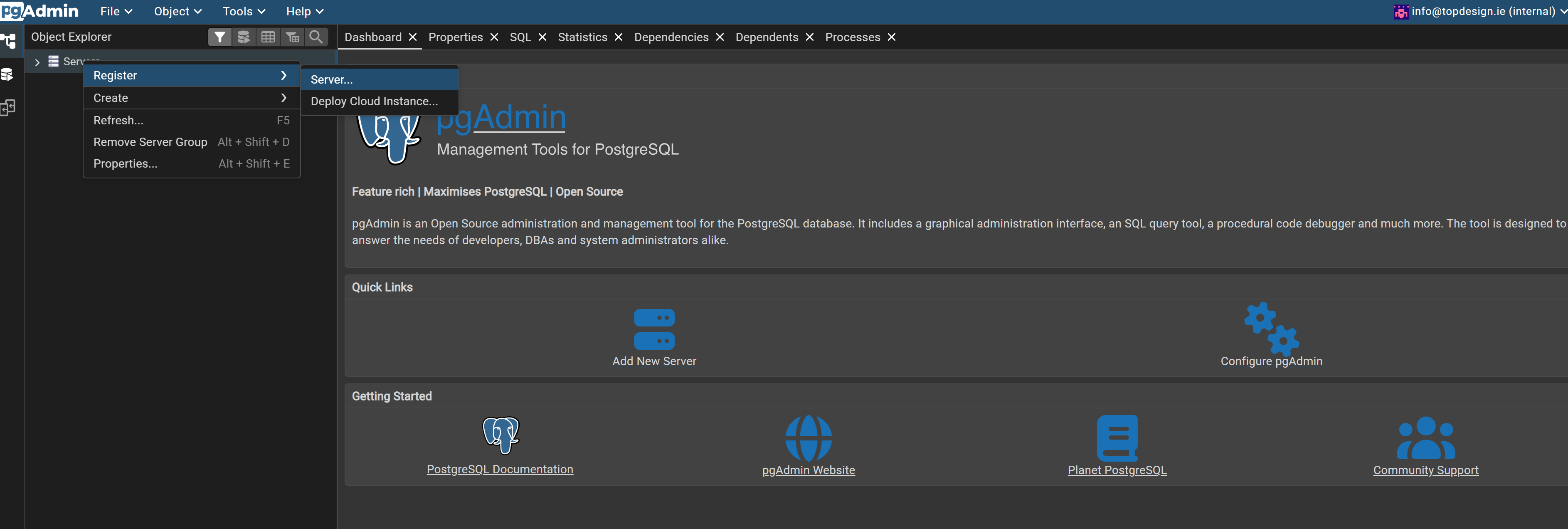
Add name, server location (in our case is localhost), database name, database username and database password:
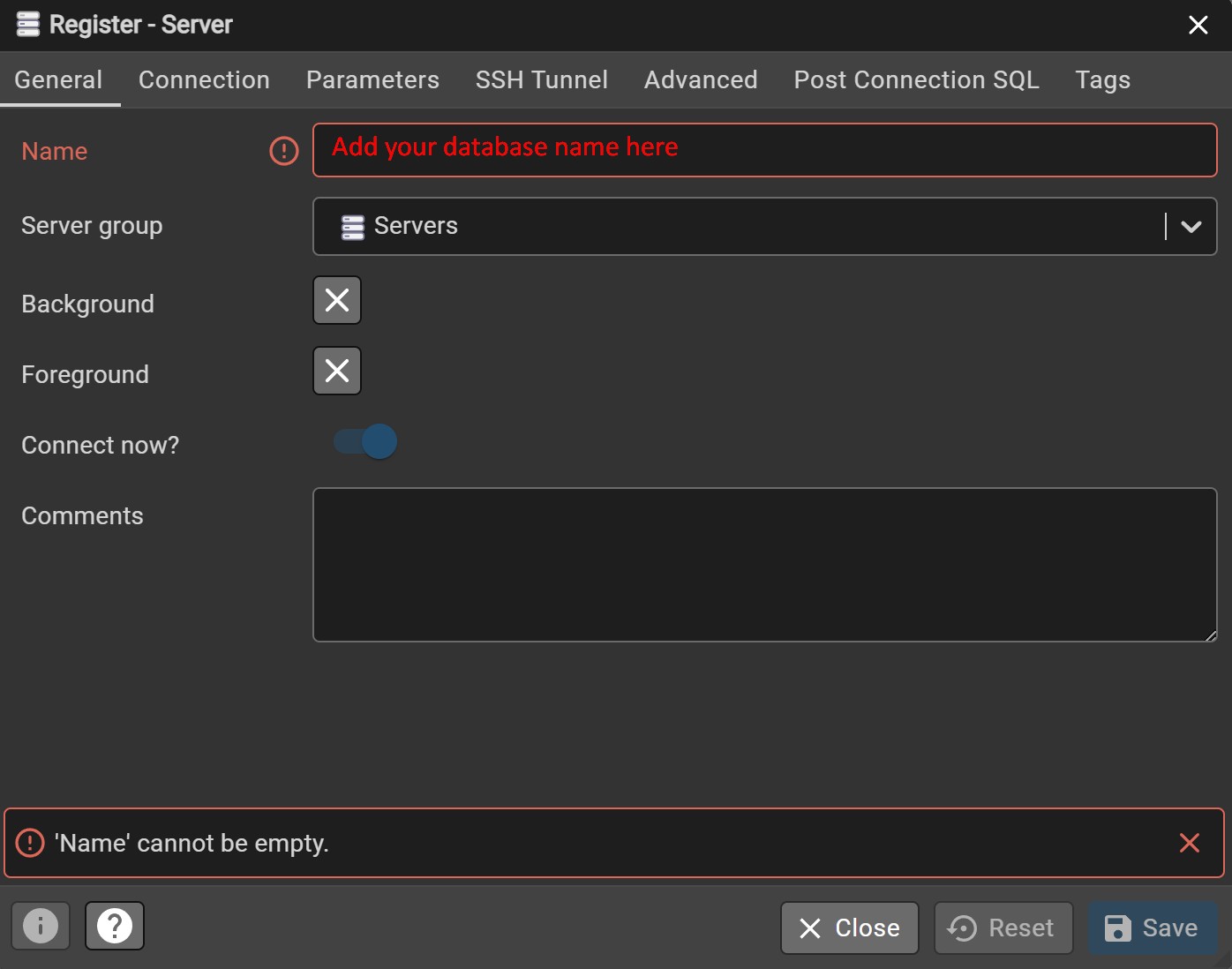
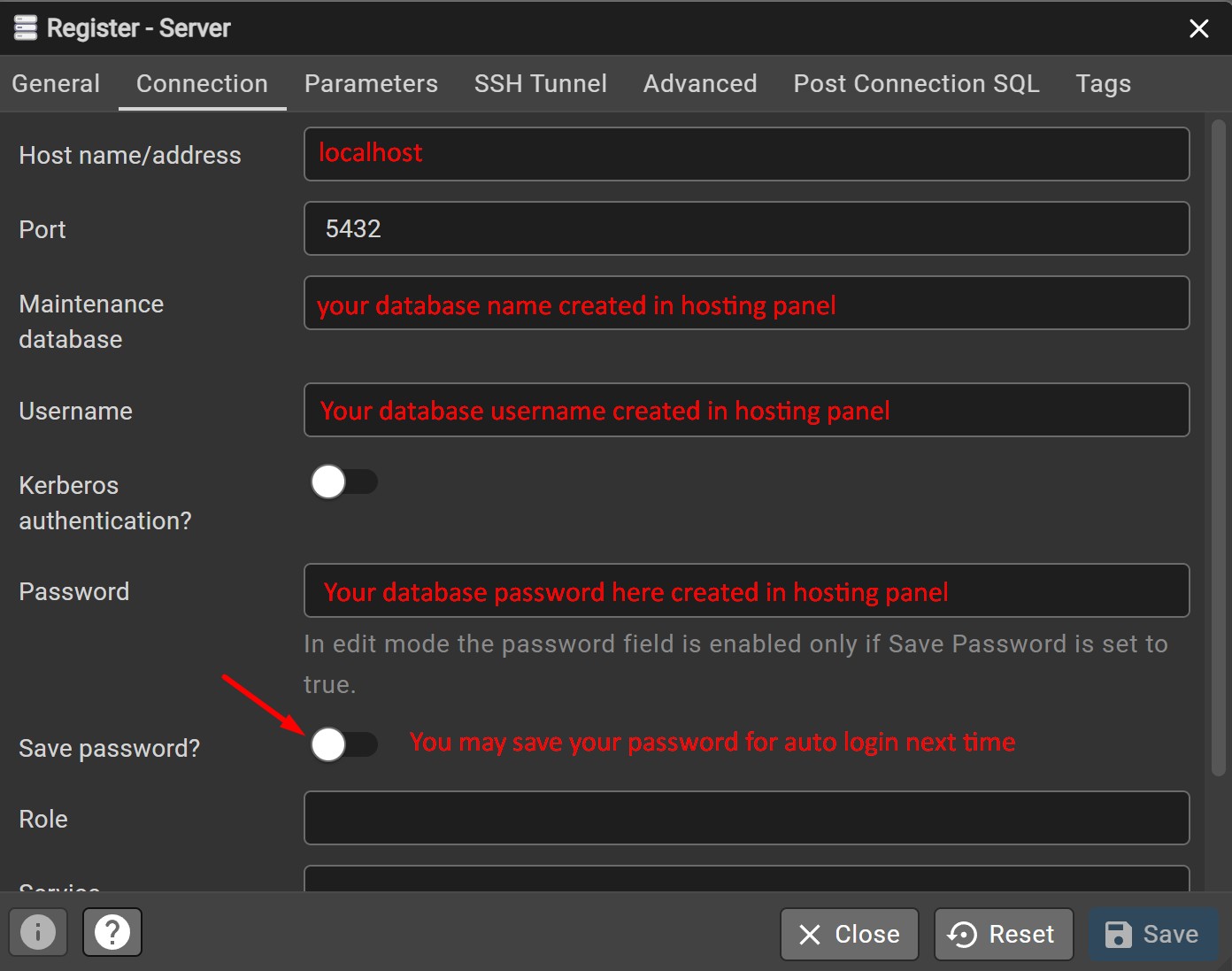
After successful authentication, your database will load on right column with all the tables.
PLEASE NOTE!!!
“In PostgreSQL, every authenticated user can see the names of all databases on the server. This does not mean you can access them. Your account can only connect to the databases you have privileges for. If you try to access others, PostgreSQL will block you. This behavior is normal and expected, and pgAdmin 4 just shows what the database reports.”
In order to have access to the pgAdmin interface, please contact us to create an account for you!