This guide will provide the steps for how to use cPanel's script to automatically set up an e-mail account on an iOS device
| Step 1 | On your iPhone/iPad/iPod, open Safari and navigate to your cPanel login page | 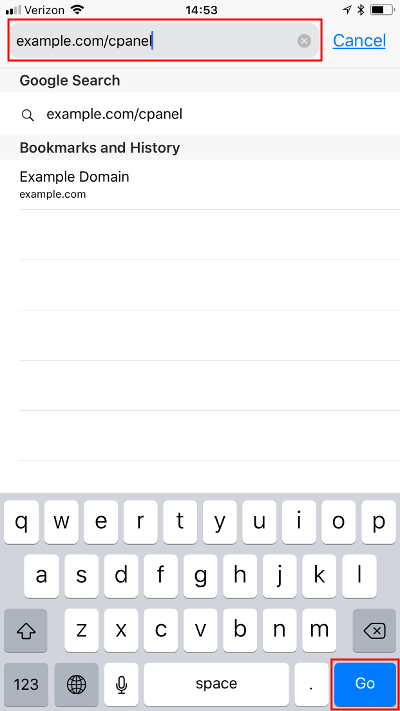 |
| Step 2 | Log into cPanel. Be sure to use the cPanel username that owns the email account you want to set up. | 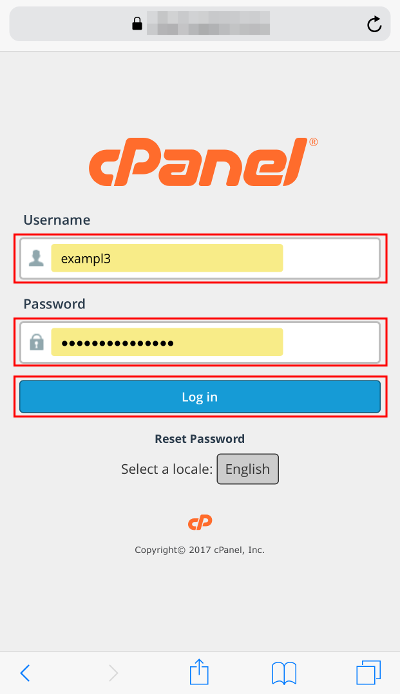 |
| Step 3 | Under the Email section, tap Email Accounts. | 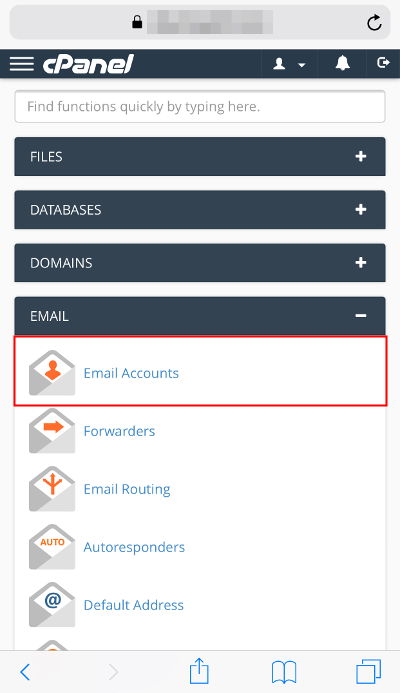 |
| Step 4 | From the Email Accounts list, locate the email address you want to setup. Tap MANAGE. | 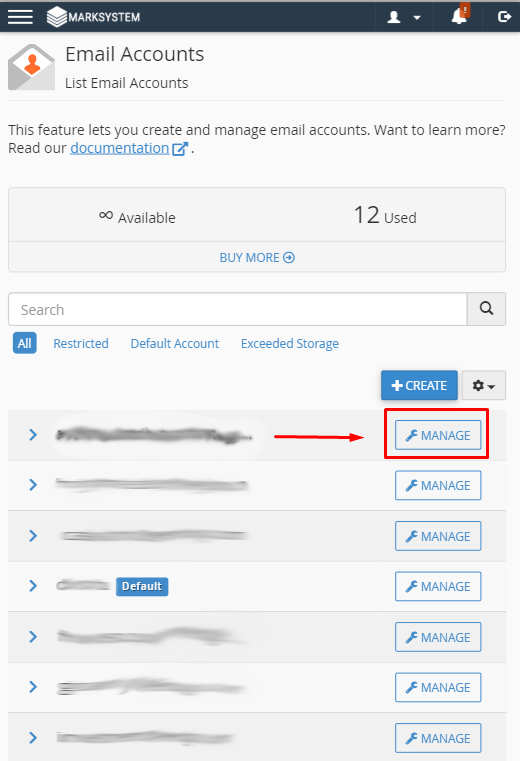 |
| Step 5 | Scroll down until you will find the link Connect Devices | 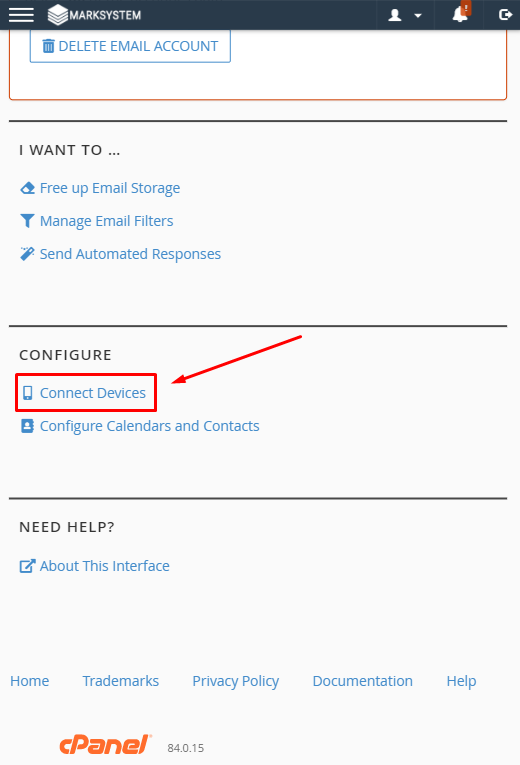 |
| Step 6 | Find section: Mail Client Automatic Configuration Scripts and click on IMAP ovre SSL/TLS on the line where iOS scripts are mentioned | 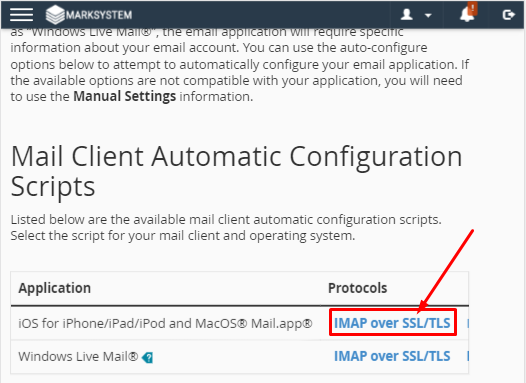 |
| Step 7 | Start configuration by clicking on Proceed button | 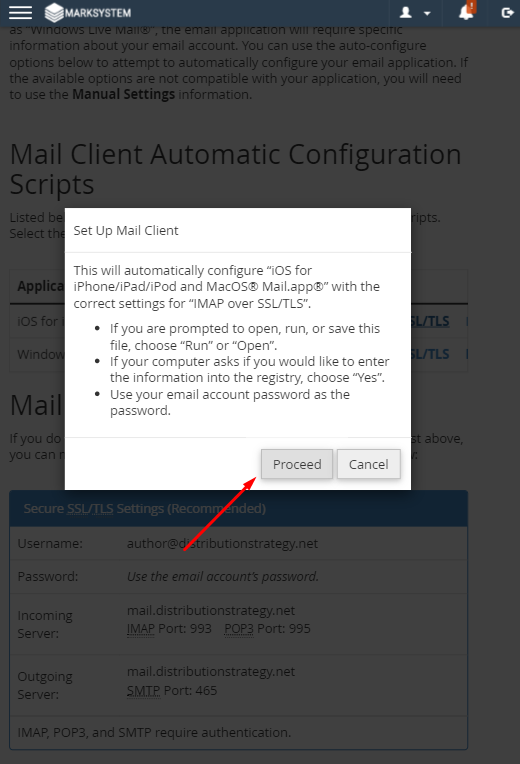 |
| Step 8 | Tap Allow to permit Safari to open Settings to install the configuration profile. | 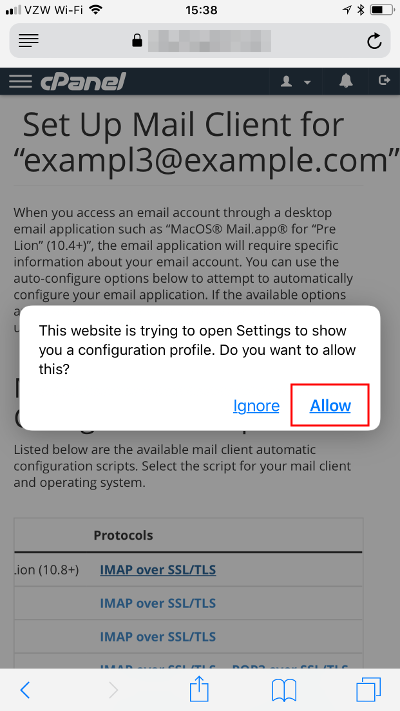 |
| Step 9 |
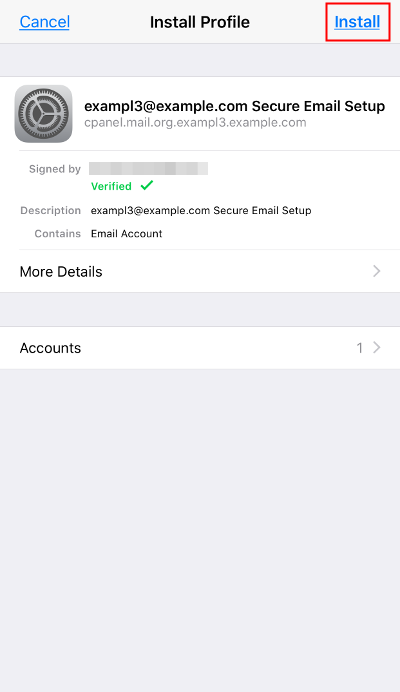
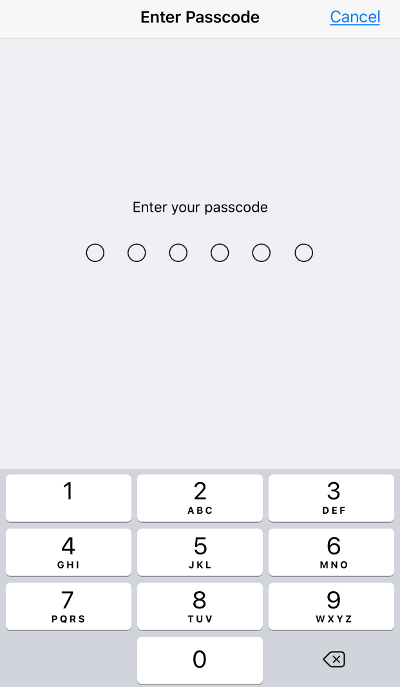
Review the Profile to be installed and tap Install NOTE: If you created a Passcode for your iPhone/iPad/iPod , you will be prompted to enter that Passcode. Enter the Passcode to proceed.
|
|
| Step 10 | Tap the Install button. | 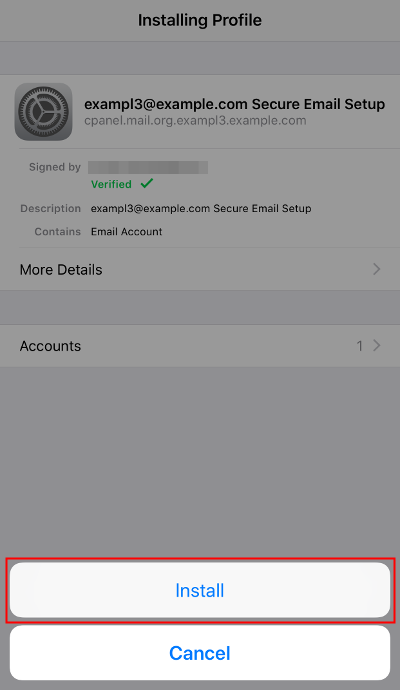 |
| Step 11 | Enter your email account's password, then tap Next. | 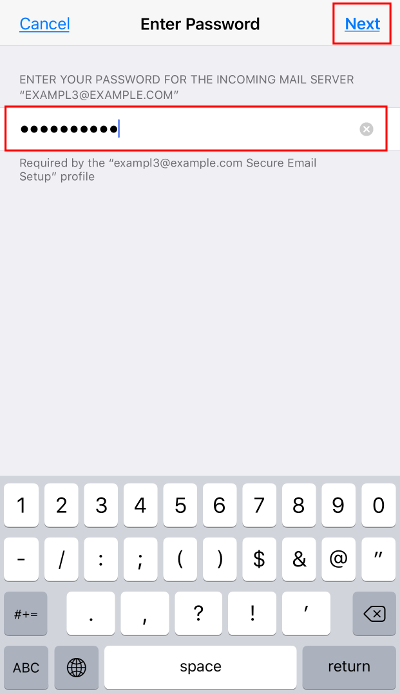 |
| Step 12 | Tap Done. | 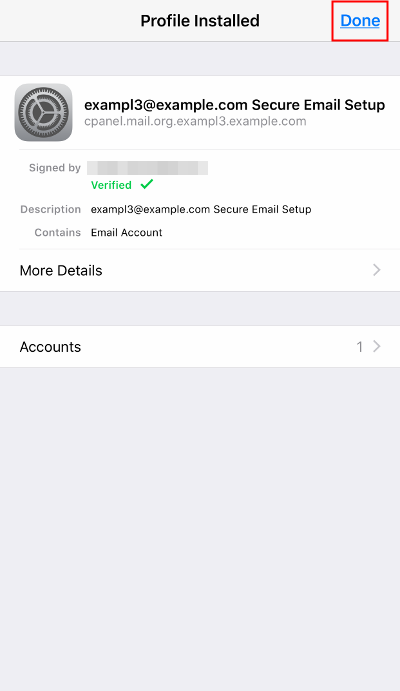 |